Using Steady
How to log weight and find your chart in Steady
A saved reading and a chart answer different questions. The first records what you entered today. The second lets you review those entries together. This walkthrough shows the controls in the Steady iPhone app, including a detail that matters when you have only a few readings: the chart can show older entries when the selected range has too little data.
Save today's reading
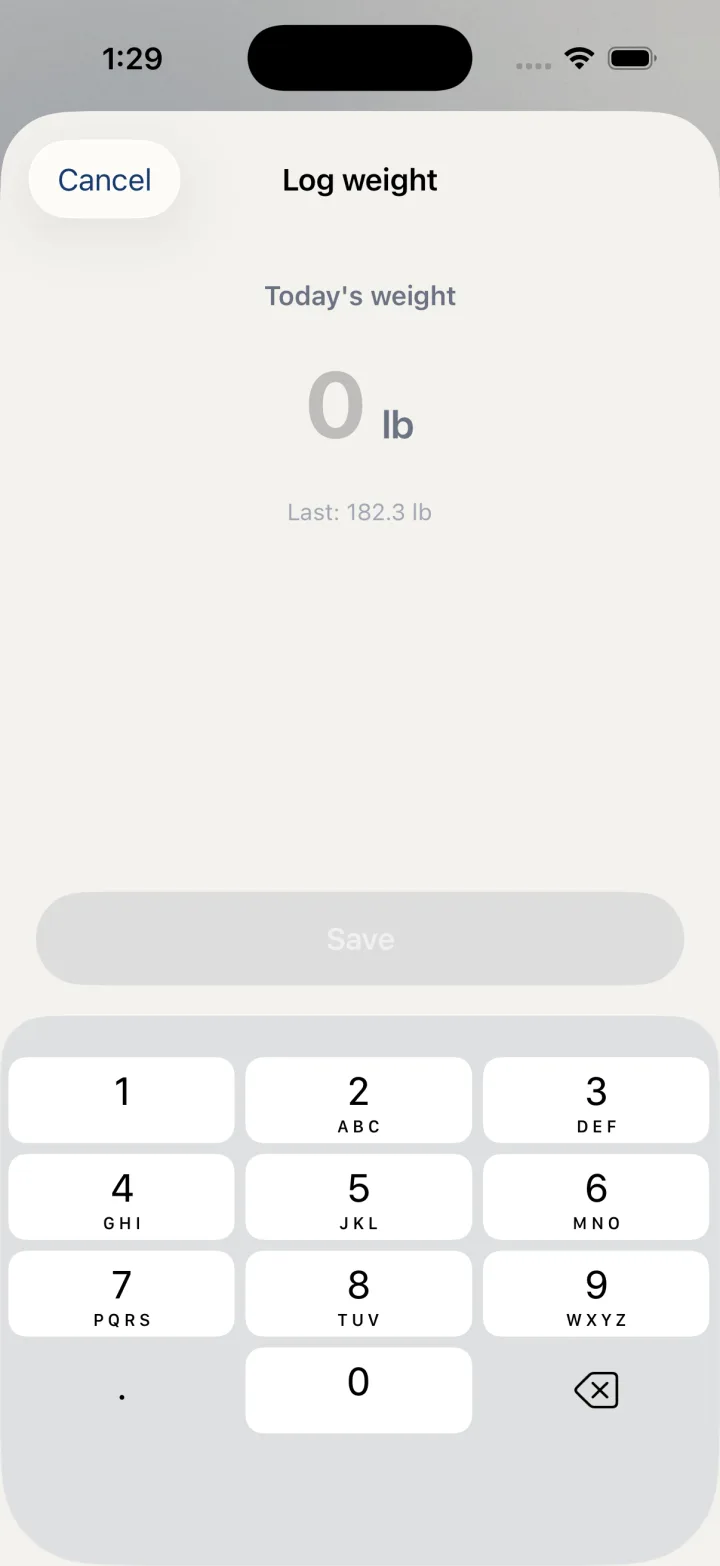
Start with the floating plus button. The logging menu is available across the health-record tabs, so you do not need to find the chart before adding a reading. The weight sheet shows the unit from your existing plan alongside the input. Check that label before entering a number; this sheet does not offer a unit selector.
If you already have a weight record, a Last line displays the latest saved value as a reference. It is separate from the new input. Enter the reading you want to record rather than assuming that the previous number has already been copied into the field.
- Tap the floating + button.
- Choose Log weight.
- On the Log weight sheet, find Today's weight and check the displayed unit.
- Enter a positive number in the weight field.
- Tap Save. The sheet closes after saving. Use Cancel if you do not want to add a reading.
Find the Weight chart
The Body row opens a screen titled Progress. Scroll there to find the Weight card.
The chart lives inside Body, rather than in the entry sheet. Keeping these locations separate lets you add a quick reading and return later to review your history. The Weight card also displays your current saved weight next to its heading.
The range buttons are labeled 1M, 3M, 6M and 1Y. In the current implementation these correspond to windows of 30, 90, 180 and 365 days. Treat the labels as navigation controls, rather than a promise that every visible point is always inside that window.
- Open the Track tab.
- Choose Body, described as Weight, measurements, photos and trends.
- Scroll to the Weight card.
- Select 1M, 3M, 6M or 1Y to change the requested chart window.
Understand a sparse chart
If the requested window contains fewer than two readings, Steady falls back to up to the latest 30 saved readings. This keeps a new or sparse chart from appearing empty solely because the window is narrow. It also means older points may appear after you select a shorter range.
Use the dates and your saved records when checking what a point represents. A chart organizes the numbers in your record; this walkthrough does not interpret a change, set a goal or recommend a treatment decision. If the display does not match what you intended to enter, review the underlying record before relying on the chart.
Before you rely on this workflow
- This describes the iPhone app, not web-account synchronization.
- Save requires a positive numeric weight.
- A selected chart window with fewer than two readings falls back to up to the latest 30 records.
Read the Privacy Policy for storage and connected-service details. These instructions describe product controls and recorded observations, not treatment decisions.
Keep working with your record
Save and share your record · Choose a GLP-1 tracker · All Steady guides
Explore Steady