Using Steady
How to save and share your Steady record
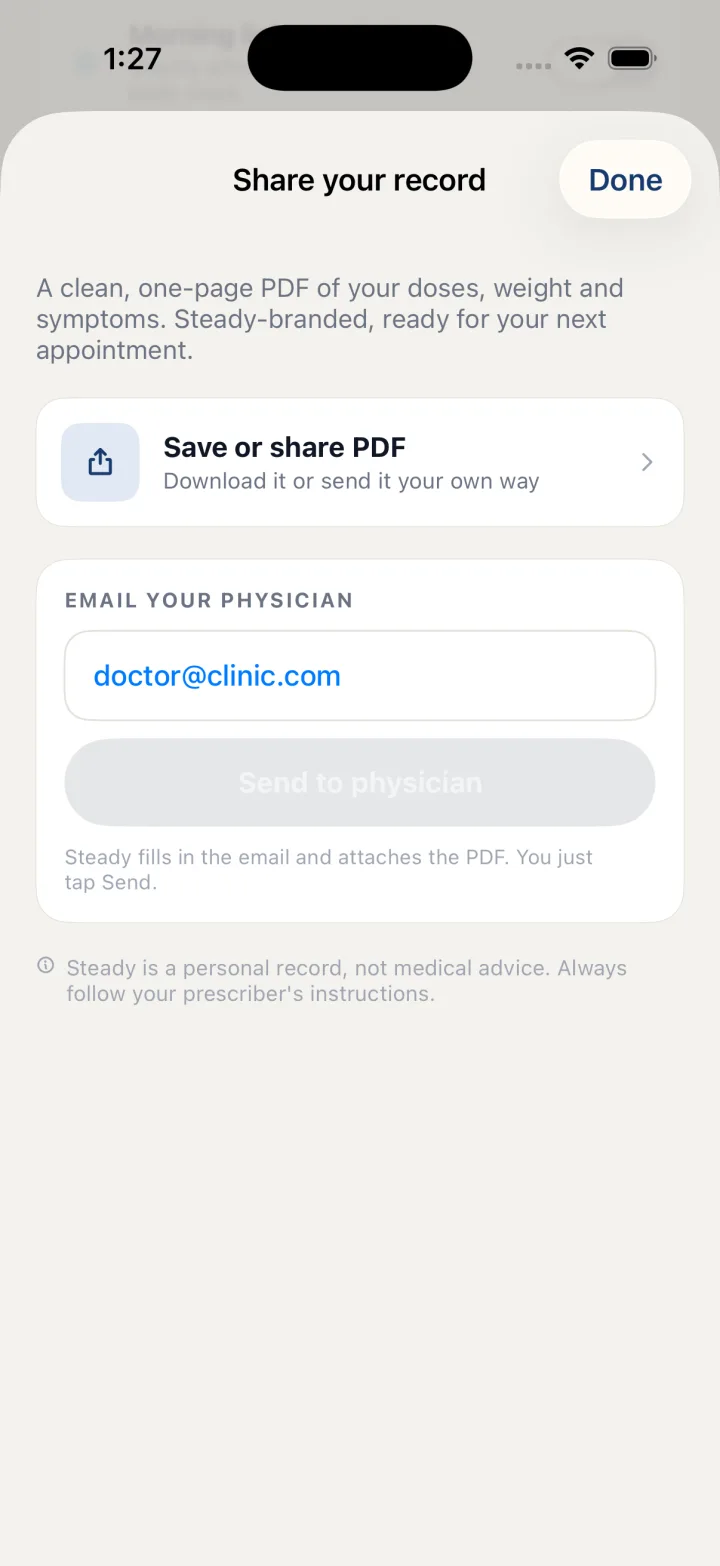
On iPhone, choose Save or share PDF on the Share your record screen. On the web, choose Print or save as PDF, or download your doses, weights and symptoms as separate CSV files. Review the report before choosing who receives it.
Start with the entries you want to share
A useful report starts with an accurate record. Check the dates, names and values you entered before exporting. The report reflects your logs; it does not independently verify them. An empty section can mean nothing was logged, rather than that nothing happened.
Steady brings logged doses, weight and reported symptoms into a summary. Other sections can appear when the relevant entries exist, including check-in averages, patient-reported lab results and body measurements. The report is a self-recorded summary, not medical advice.
Save or share a PDF on iPhone
- Open Share your record
Use the screen with that title in the iPhone app.
- Choose Save or share PDF
Steady creates the PDF and opens the iPhone share sheet.
- Choose your destination
Save a copy or select how to share it. Review the file and the recipient before sending.
If you are preparing for an appointment, keep your questions alongside the report. The export describes what you logged; decisions about treatment belong with you and your licensed clinician.
Print or save a PDF from the web app
- Open the web export screen
Sign in to the web app and open Share your record.
- Choose Print or save as PDF
Your browser opens its print dialog. Choose a printer or Save as PDF where your browser supports it.
- Preview the result
Check the output before saving. To email a web report, save the PDF and attach it yourself.
Download individual logs as CSV
For a spreadsheet rather than the report layout, use the Doses, Weights or Symptoms buttons under Download as spreadsheets on the web export screen. Each downloads a separate CSV with one row per entry, suitable for opening in a spreadsheet application.
| Format | Where to find it | What you receive |
|---|---|---|
| iPhone PDF | Save or share PDF | A report passed to the iPhone share sheet |
| Web print or PDF | Print or save as PDF | A report through your browser's print dialog |
| Web CSV | Doses, Weights or Symptoms | Individual log entries in separate files |
Know where the record and exported copy live
The iPhone app stores its record locally. The web app saves its record in your signed-in Steady account. This guide describes exporting from each platform; it does not describe a transfer between them.
Sharing a report creates another copy outside Steady. Check where you save it and who can access that destination. Connected services have additional data flows described in the Privacy Policy.
Common questions
- Can I save a PDF from the web app?
- Yes. On Share your record, choose Print or save as PDF. The browser opens its print dialog; choose Save as PDF where your browser supports it.
- Can I download individual logs?
- The web export screen has separate Doses, Weights and Symptoms CSV downloads. Each file contains one row per entry.
- Does creating a report send it to my clinician?
- Creating or saving a report is separate from sending it. On iPhone, choose a destination in the share sheet. On the web, save the PDF and attach it yourself. Check the recipient before sharing.
Keep the next conversation focused
Bring the observations you want to discuss and the questions you want answered. A record can help you show what you entered without reconstructing it from memory. It does not recommend a medication, dose, schedule or treatment change.
Browse the Steady guides or return to Steady for iPhone and the web.
Open your web export screen