Using Steady
How to log water and correct an entry in Steady
Steady's iPhone water tracker brings today's entries, your chosen goal and a seven-day view into one screen. You can record a preset amount or type another amount, then remove an entry if you tapped the wrong button. This walkthrough explains the controls, without recommending how much you should drink.
Find the Water dashboard
Open the Track tab and choose Water under Dashboards. The top card shows today's logged amount and progress against your current goal. These totals describe what you entered in Steady, so an unlogged drink will not appear automatically.
The app shows ounces when your record uses pounds and milliliters when it uses kilograms. Check the unit beside the amount before logging, especially when the container you are using has different markings.
- Open Track.
- Choose Water.
- Tap Log water to open the entry sheet.
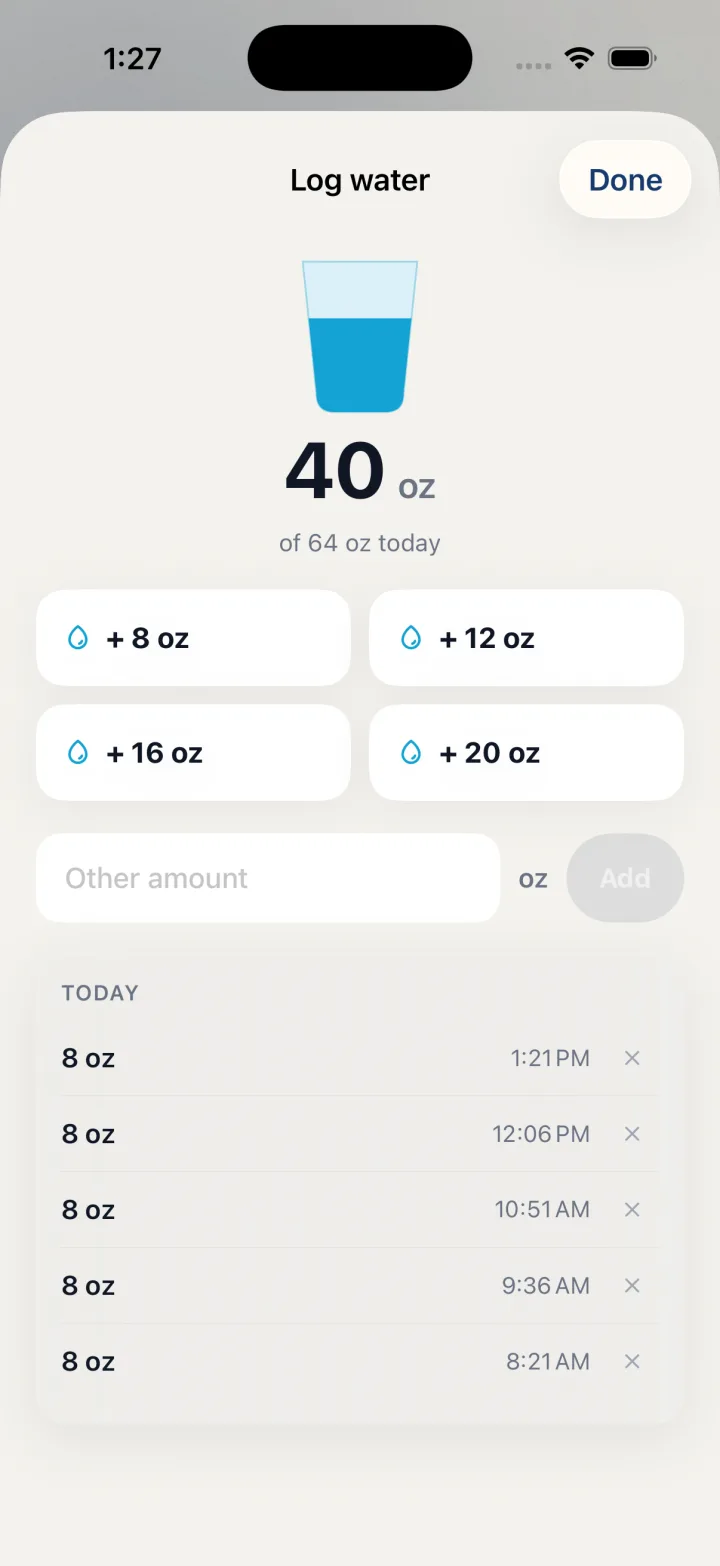
Record the amount you actually want to log
The Log water sheet includes amount buttons and an Other amount field. Each tap on an amount button creates an entry, so repeated taps add repeated entries. Use the amount you intended to record rather than tapping several controls to explore them.
A custom amount must be a positive number before Add becomes available. After adding it, the field clears and the keyboard closes. The sheet stays available so you can review today's entries before leaving.
- Tap the preset amount that matches your entry, or type a positive number in Other amount.
- For a custom amount, confirm the displayed unit and tap Add.
- Check the Today list for the amount and time you just recorded.
- Tap Done when finished.
Correct a mistake and review the week
To remove a mistaken entry, open Log water again and find the amount and timestamp in Today. Its X control removes that entry. If you recorded the wrong amount, remove it and then add the intended amount as a new entry.
Back on the dashboard, Last 7 days displays recorded totals by day. The goal line and Goal met count compare those entries with your current setting. They are a view of your log, not a medical assessment. Home also has shortcuts for adding a glass and removing the most recent glass logged today.
- Find the incorrect entry in Today.
- Tap its X control to remove it.
- Add the correct amount if needed, then tap Done.
- Review Last 7 days on the Water dashboard.
Before you rely on this workflow
- Your water goal is a personal setting, not a recommendation from this guide. Ask your prescriber what amount is appropriate for you.
- With Apple Health sync enabled and the necessary permission, logged water is saved there too. Removing an entry also requests removal of the Health sample Steady wrote for it.
- This walkthrough describes the native iPhone app and does not promise iPhone-to-web synchronization.
Read the Privacy Policy for storage and connected-service details. These instructions describe product controls and recorded observations, not treatment decisions.
Keep working with your record
Save and share your record · Choose a GLP-1 tracker · All Steady guides
Explore Steady