Using Steady
How to enter a lab result from your report in Steady
If you already have a lab report, Steady's iPhone app lets you enter an individual result by hand. Keep the original report beside you so you can check the marker, value, unit and collection date. This walkthrough covers recording information, not choosing tests or interpreting results.
Open the manual entry form
Open Track and choose Bloodwork. The destination screen is titled Lab results. Below Import a lab report is a separate option labeled Or enter one by hand. Use that option for this workflow.
Manual entry is useful when you want to record a supported marker directly from a report. It does not upload the full report or create an order for a new test. Keep your original document so you can refer to its complete information later.
- Open the Track tab.
- Choose Bloodwork.
- Tap Or enter one by hand to open Add result.
Match the marker, value and unit
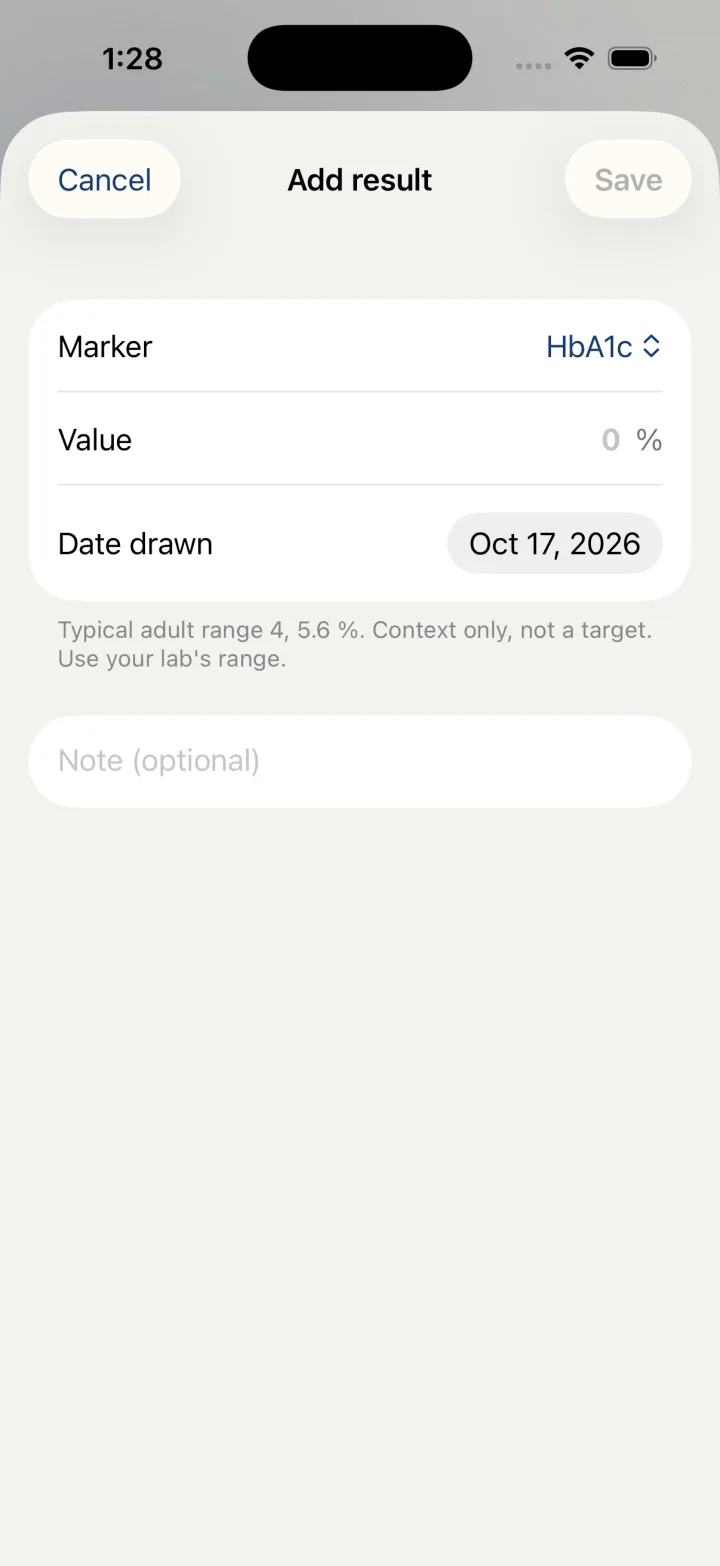
Choose Marker before typing the value. The app presents its supported markers in groups and displays a unit beside the Value field. Check that the marker and unit match the report you are copying.
Do not copy a number into a field with a different unit or choose a similar-sounding marker merely to complete the form. This guide does not provide unit conversions. If you cannot confidently match the report to a supported marker, retain the report and clarify the discrepancy before recording it.
- Open Marker and choose the matching item.
- Compare the displayed unit with the unit on the original report.
- Type the reported number in Value.
- Check the number again against the document.
Record the draw date and save
Date drawn refers to the date the sample was collected. The date picker permits today or an earlier date. Use the collection date from your report rather than automatically keeping today's date. Note (optional) can preserve brief context you want alongside the entry.
Tap Save once you have checked the fields. Save remains unavailable until the value can be read as a number. Saving closes the form and adds the entry to your record. Cancel closes the form without saving this entry.
The screen may show typical adult reference intervals for context, or explain that a marker's interval depends on factors such as the assay. Those displays do not replace the range printed on your own report or your clinician's interpretation.
- Set Date drawn to the collection date on the report.
- Add a Note if useful.
- Review the marker, value, unit and date together.
- Tap Save, or Cancel if you do not want to keep the entry.
Before you rely on this workflow
- The marker picker contains a finite supported list; manual entry is not a complete copy of every possible laboratory report.
- Displayed intervals are context, not targets. Use your laboratory's own range and your clinician's reading.
- This guide does not cover ordering, diagnosis, treatment decisions or changing a dose.
Read the Privacy Policy for storage and connected-service details. These instructions describe product controls and recorded observations, not treatment decisions.
Keep working with your record
Save and share your record · Choose a GLP-1 tracker · All Steady guides
Explore Steady