Using Steady
How to create and restore an iPhone backup in Steady
A Steady backup is a file you choose to save from the iPhone app. It is different from a readable report you share with someone: its purpose is restoring the app's supported local records. Before restoring, understand that it replaces the record currently on that device rather than merging two records.
Create a backup file
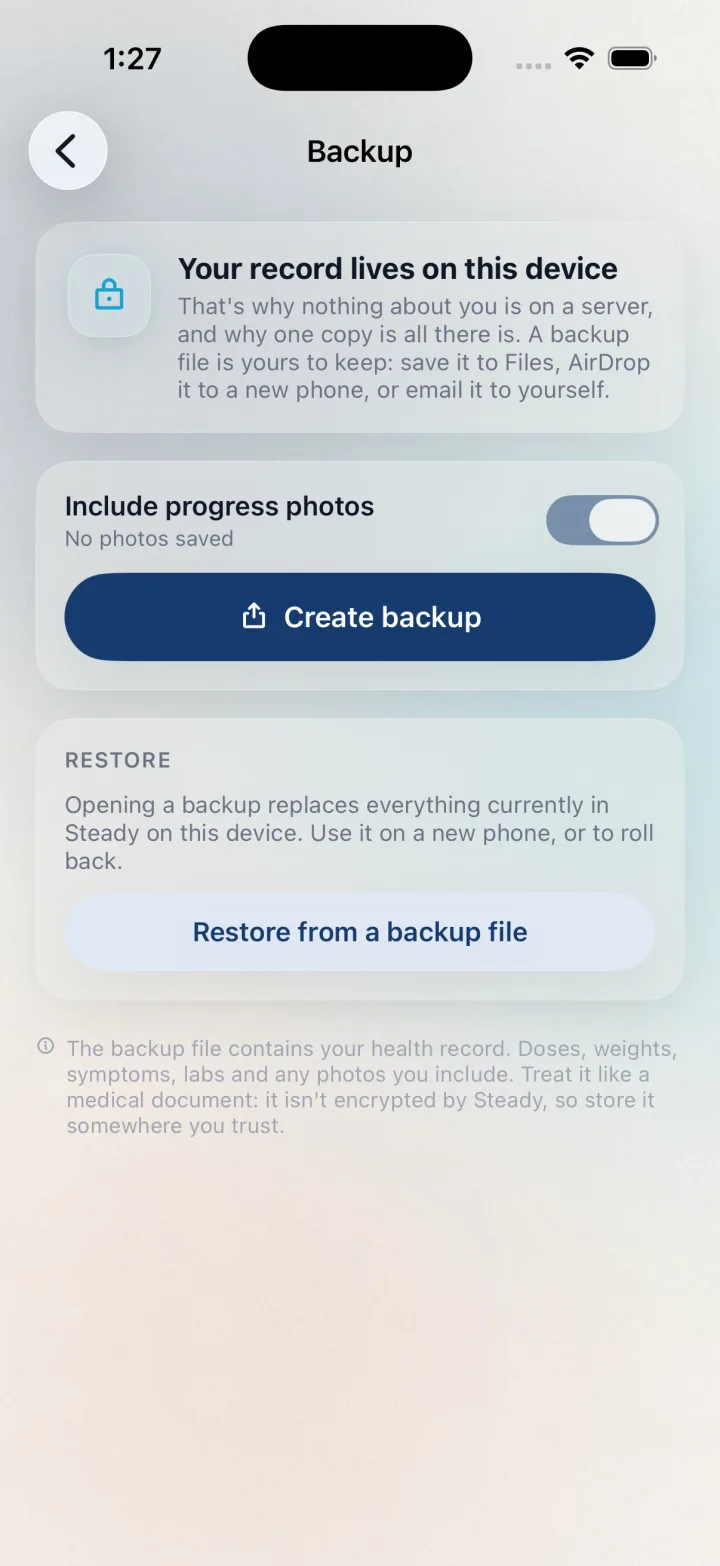
From Home, tap the list-style profile button in the header to reach You and choose Backup & restore. On the Backup screen, decide whether to enable Include progress photos. Including photos makes the file larger, so consider whether you need them in this particular copy.
Tap Create backup to generate a file and open the system sharing options. Choose the destination yourself, such as Files. The generated filename starts with Steady-backup and uses the steadybackup extension. Keep track of where you save it so you can find it again.
- From Home, tap the list-style profile button in the header to open You, then choose Backup & restore.
- Choose whether to include progress photos.
- Tap Create backup.
- Use the system share sheet to save the file to a destination you trust.
Know what the file contains
The backup format includes the plan and supported local records such as doses, weights, symptoms, nutrition, check-ins, inventory, lab results, measurements and water entries. Progress photos can be included through the photo option. Do not assume the file contains every app preference or sound preset.
Steady does not encrypt this backup file. It contains personal health information, so consider who can access the destination you choose. A backup is not an automatic synchronization service, and creating one does not keep an older saved copy up to date. Create a new file when you need a more recent copy.
Restore only when replacement is intended
On the Backup screen, choose Restore from a backup file and select your saved file. If the file cannot be read as a Steady backup, the app shows an error. A readable file opens the Restore this backup? confirmation with its creation date and summary.
Read that confirmation before continuing. Replace everything overwrites the current local record with the backup's contents. It does not append the old entries to the current ones. If there is anything on this device you may need, create and save a separate current backup first. Choose Cancel if you are unsure which file you selected.
- Tap Restore from a backup file.
- Select the intended steadybackup file.
- Review its date, summary and replacement warning.
- Tap Replace everything only if you intend to replace the current local record, otherwise tap Cancel.
Before you rely on this workflow
- Restoring is destructive replacement, not merging or synchronization.
- Restoring a backup created without progress photos removes current photos from the app record. Save a separate current backup with photos first if you want to preserve them.
- Steady does not encrypt the exported backup file. Store and share it thoughtfully.
- This is a native iPhone workflow. It does not promise web-account restoration or native-to-web sync.
- The backup is not a readable appointment report and does not necessarily contain every app setting.
Read the Privacy Policy for storage and connected-service details. These instructions describe product controls and recorded observations, not treatment decisions.
Keep working with your record
Save and share your record · Choose a GLP-1 tracker · All Steady guides
Explore Steady