Using Steady
How to add body measurements in Steady
The Measurements screen in the Steady iPhone app lets you keep dated records for selected body sites. You do not need to fill every field. The most important detail when returning to the form is that previous values can already be filled in, so review the whole form before saving a new set of entries.
Navigate to Add measurements
In Track, Body opens the screen titled Progress. Measurements is a separate row on that screen.
Measurements is inside the Body dashboard. Open Track, choose Body, then scroll to the Measurements row. That row opens a screen with an Add measurements button. It also displays recorded measurement changes when records are available.
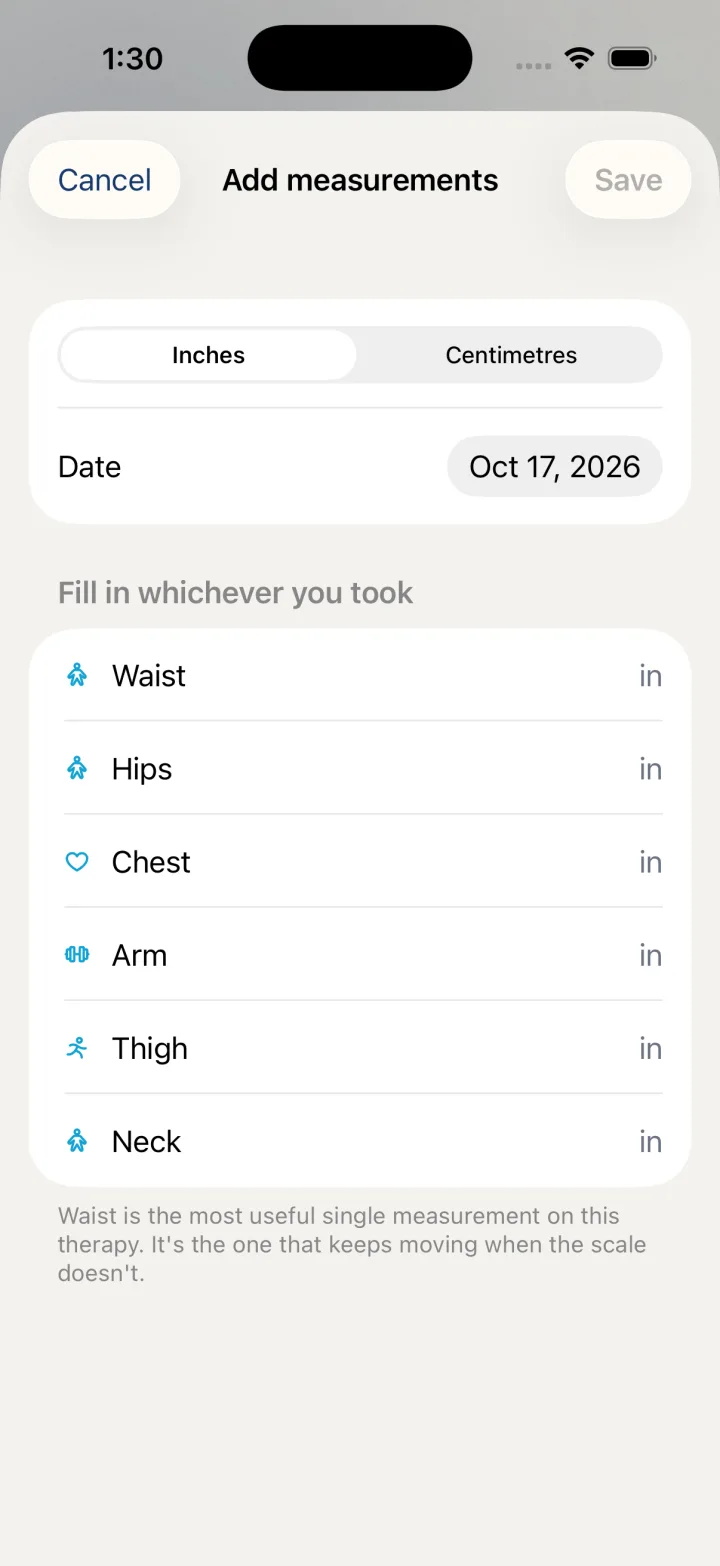
Opening the form does not require you to enter all six supported sites. The fields are organized as Waist, Hips, Chest, Arm, Thigh and Neck. Use the sites you actually intend to record, rather than filling blanks simply to complete the screen.
- Open the Track tab.
- Choose Body.
- Scroll to Measurements and open it.
- Tap Add measurements.
Choose units and date first
At the top of the form, choose Inches or Centimetres and check the Date field. The date selector accepts today or an earlier date. This lets you record an observation for the date it belongs to, rather than assuming every entry must be for the moment you open the form.
The form initially chooses units using your plan's weight-unit setting. It also prefills the last saved value for each measurement site. Before entering a new reading, inspect both the units and every prefilled number. Do not assume that changing a unit label has converted an existing number for you. Enter the value in the unit currently selected.
- Select Inches or Centimetres under Units.
- Check Date and select the intended day if needed.
- Review any previously filled values before editing the measurements.
Save only the fields you want to record
A filled field is a candidate for saving even if you did not change it during this visit. Clear a prefilled field if you do not want to add that site's value to this dated set. This is particularly useful when you measured only one or two sites and want your record to reflect that limited set accurately.
Saving creates entries for positive numeric values. Blank fields are skipped. After saving, the sheet closes and you can return to Measurements to review your record. The screen organizes what you enter; this article does not interpret measurement changes or make claims about body composition, health outcomes or treatment.
- Enter the readings you intend to save in their matching site fields.
- Clear prefilled fields for sites you do not want to record again.
- Recheck the units, date and populated fields together.
- Tap Save in the top bar, or Cancel to leave without recording the form.
Before you rely on this workflow
- Previous site values prefill and can be saved again unless cleared.
- Only positive numeric values create measurement entries.
- Do not assume an existing number is converted merely by switching the unit selector.
Read the Privacy Policy for storage and connected-service details. These instructions describe product controls and recorded observations, not treatment decisions.
Keep working with your record
Save and share your record · Choose a GLP-1 tracker · All Steady guides
Explore Steady